ToyTool Firmware
SmallTV-Ultra API: push widgets from your scripts
Send numbers, lists, notes and notifications to a GeekMagic SmallTV-Ultra from any script over your home network, with curl, Python and Node examples.
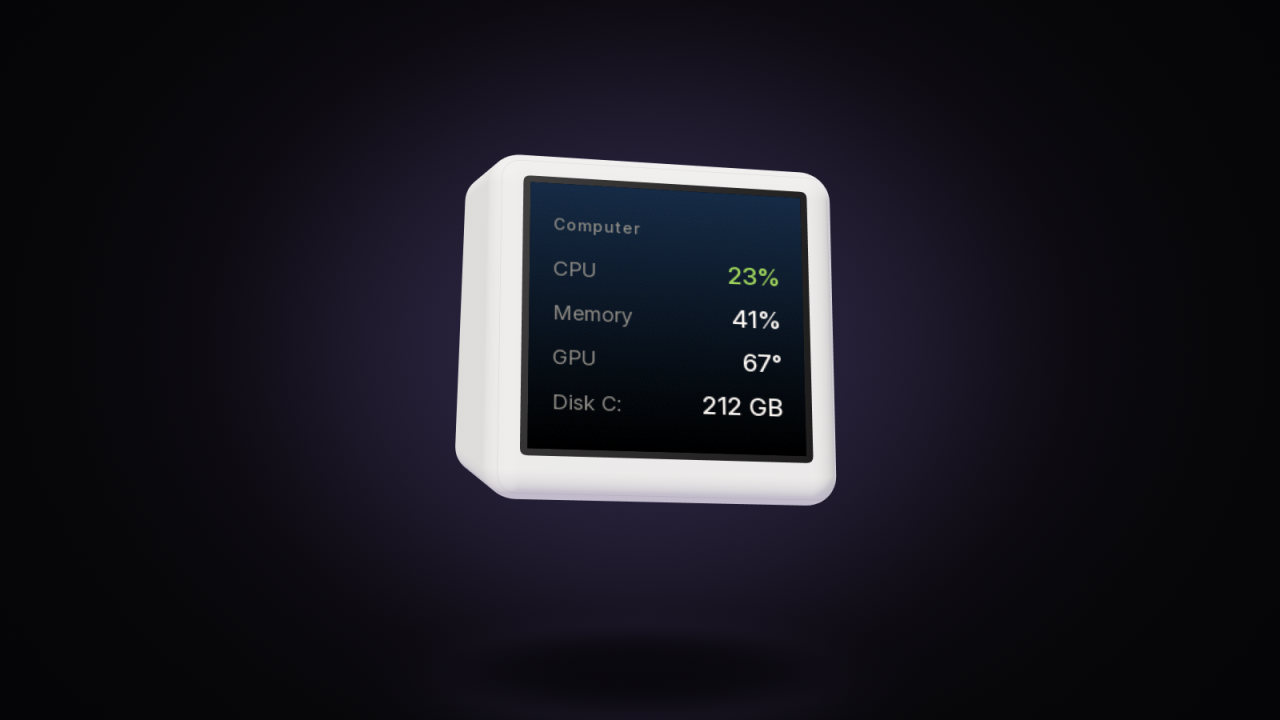
With ToyTool Firmware, a GeekMagic SmallTV-Ultra takes small JSON messages over your home network and turns them into pages on the screen: a big number with a progress bar, a list, a note, or a notification on top of everything. One HTTP request from curl, a Python or Node script, a phone shortcut, anything that can send a POST. The request goes straight to the screen: no cloud and no API key in between.

Everything here is checked against the source of ToyTool Firmware 1.16.0. The endpoints belong to ToyTool: the stock GeekMagic firmware has a different web interface (Home Assistant’s geekmagic-hacs integration uses it to upload pictures — see the firmware options compared).
What you need
- A SmallTV-Ultra running ToyTool and activated in your account (the Basic licence is $3.99 per screen, paid once).
- The screen’s IP address. The screen shows it for a moment as “Connected 192.168.…” right after it joins Wi‑Fi, and the screen’s card in your ToyTool account shows it when Local network address is on in the screen settings. A DHCP reservation in your router keeps the address from changing.
- A computer, server or phone on the same network.
The examples use 192.168.1.50. Put your screen’s address in its place.
Your first widget
curl -X POST http://192.168.1.50/api/widget \
  -H "Content-Type: application/json" \
  -d '{"id": "sales", "title": "Course sales", "value": "37", "unit": "of 50",
       "sub": "seats sold this month", "progress": 0.74, "show": true}'
The screen answers {"ok":true} and, because of "show":true, jumps straight to the new page. Without it the widget
waits for its turn in the rotation, as part of Widgets — one of the screen’s standard pages, ten seconds per
widget. If your widgets never come round, add Widgets to the screen’s rotation in your account: it’s with the
standard screens in the Data collection.
On Windows, PowerShell’s own command is easier than juggling quotes for curl.exe:
$body = @{
  id = "sales"; title = "Course sales"; value = "37"; unit = "of 50"; progress = 0.74
} | ConvertTo-Json
Invoke-RestMethod -Method Post -Uri "http://192.168.1.50/api/widget" `
  -ContentType "application/json" -Body $body
How widgets work
- A screen holds up to four widgets. Each one is a page of its own.
- The
idnames a widget. Send the sameidagain and you update it; fields you leave out keep their old values. - A fifth
idis refused with400 {"ok":false,"error":"need id; max 4 widgets"}— delete one first. - The Claude Code helper (Claude Code usage on your desk) also uses
one of the four places, under the id
cc.
There are three kinds, picked with type (metric when you leave it out on the first send):
type | What the page shows | Main fields |
|---|---|---|
metric | a big number with a unit, a caption of up to two lines, an optional progress bar | value, unit, sub, progress |
list | up to five label–value rows; the first value is in the accent colour | rows |
text | a block of text | text |
Every field
Text limits are in bytes of UTF‑8 (a Latin letter is one byte, a Cyrillic one is two). Longer text is cut.
| Field | What it does | Limit |
|---|---|---|
id | Required. Names the widget; the same id updates it | 15 bytes |
type | metric, list or text | — |
title | The small heading at the top | 31 bytes |
value | The big number of a metric (a string: "37", "1.4M") | 23 bytes |
unit | Next to the value: "of 50", "%" | 11 bytes |
sub | The caption under the value | 79 bytes |
progress | A number from 0 to 1: the bar at the bottom. null removes the bar | — |
rows | [["label","value"], …] for a list | 5 rows, 23 bytes per cell |
text | The body of a text widget | 159 bytes |
color | "#RRGGBB": this widget’s own accent (bar, first row) | — |
image | A picture behind the widget, fetched by the screen: a plain http:// URL of a baseline JPEG under 120 KB, best at 240×240. "" removes it | — |
state | A short word or number for watch faces ({w_<id>_st}, see below) | 11 bytes |
ttl | Seconds until the widget disappears by itself | — |
show | true: show this widget now | — |
page | false: no page of its own — the data is only for watch faces | — |
Fresh numbers: send a ttl
A widget sent with ttl disappears when the time runs out, and the screen never writes it to its flash memory. A
widget without ttl is saved and comes back after a restart; it stays until you delete it or send something new.
So a script that updates every 30 seconds should send a ttl a few times longer than that, say 120. If the script
stops, the page goes away instead of showing yesterday’s numbers — and the flash chip isn’t rewritten every half
minute. Each update without ttl makes the widget permanent again, so send it every time.
Python: your computer’s load as a list
The psutil package reads CPU, memory and disk on Windows, macOS and Linux
(pip install psutil). The rest is the standard library.
import json, time, urllib.request
import psutil

SCREEN = "http://192.168.1.50"

def send(widget):
    req = urllib.request.Request(f"{SCREEN}/api/widget", method="POST",
                                 data=json.dumps(widget).encode(),
                                 headers={"Content-Type": "application/json"})
    urllib.request.urlopen(req, timeout=5).read()

while True:
    rows = [["CPU", f"{psutil.cpu_percent(interval=1):.0f}%"],
            ["Memory", f"{psutil.virtual_memory().percent:.0f}%"],
            ["Disk", f"{psutil.disk_usage('/').percent:.0f}%"]]
    try:
        send({"id": "pc", "type": "list", "title": "Computer", "rows": rows, "ttl": 120})
    except OSError as e:          # the screen is off or out of reach: try again next time
        print("screen:", e)
    time.sleep(30)
Node: a GitHub star counter with a goal
Node 18 or newer, no packages: fetch is built in. It asks GitHub’s public API for a repository’s stars every ten
minutes (unauthenticated requests are limited to 60 an hour, so this stays far below) and shows them with a bar
toward a goal.
// stars.mjs — run: node stars.mjs 192.168.1.50 owner/repo
const [screen, repo] = process.argv.slice(2);
const GOAL = 1000;

async function update() {
  try {
    const r = await fetch(`https://api.github.com/repos/${repo}`, {
      headers: { 'User-Agent': 'smalltv-widget' },
    });
    if (!r.ok) throw new Error(`GitHub ${r.status}`);
    const stars = (await r.json()).stargazers_count;
    const widget = {
      id: 'stars',
      title: repo.split('/')[1].slice(0, 31),
      value: String(stars),
      unit: 'stars',
      sub: `goal: ${GOAL.toLocaleString('en-US')}`,
      progress: Math.min(1, stars / GOAL),
      ttl: 1800,
    };
    const s = await fetch(`http://${screen}/api/widget`, {
      method: 'POST', headers: { 'Content-Type': 'application/json' }, body: JSON.stringify(widget),
    });
    if (!s.ok) throw new Error(`screen ${s.status}`);
  } catch (e) {
    console.error(new Date().toLocaleTimeString(), e.message);
  }
}

update();
setInterval(update, 10 * 60 * 1000);
Notes and notifications
A note stays in the rotation like any widget:
curl -X POST http://192.168.1.50/api/widget \
  -H "Content-Type: application/json" \
  -d '{"id": "note", "type": "text", "title": "Reminder",
       "text": "Team call at 16:00. Bring the Q4 numbers", "ttl": 3600}'
A notification is different: it covers whatever is on the screen for a few seconds and then lets it be.
curl -X POST http://192.168.1.50/api/notify \
  -H "Content-Type: application/json" \
  -d '{"title": "CI", "text": "Build #418 passed", "sec": 15, "color": "#4ADE80"}'
text is required (up to 159 bytes), title is optional (31 bytes), sec is how long it stays — 2 to 600 seconds,
10 when you leave it out — and color paints the dot next to the title. For a shortcut or a quick test there’s a GET
form too:
curl "http://192.168.1.50/api/notify?title=CI&text=Build%20passed&sec=15"
Manage widgets
curl http://192.168.1.50/api/widgets                      # list them
curl -X DELETE "http://192.168.1.50/api/widget?id=note"    # delete one
The list gives every widget’s id, type, title, its value or text, and "temporary": true for the ones sent
with a ttl. Deleting an id that isn’t there answers 404 {"ok":false,"error":"no such widget"}.
You can also take a picture of the screen: curl -o screen.bmp http://192.168.1.50/api/screen.bmp saves a 240×240
24‑bit BMP of what’s on it right now.
Put your numbers into a watch face
A widget sent with "page": false gets no page of its own: its data only feeds watch faces. Any face can read it
through variables built from the widget’s id:
| In a face | Gives |
|---|---|
{w_pc} · {w_pc_u} | the value and the unit |
{w_pc_t} · {w_pc_s} · {w_pc_st} | the title, the caption (sub) and the state |
{w_pc_0} … {w_pc_4} | the value of row 0…4; {w_pc_0l} … {w_pc_4l} its label |
"v": "w_pc" in a ring, bar or gauge | the widget’s progress (0–1) |
"v": "w_pc_0" | the number at the start of row 0’s value, read as a percent: "23%" → 0.23 |
Use only letters and digits in an id you want in a face — the variable name is split at the first underscore, so a
widget called cpu_load can’t be read as {w_cpu_load}. The face on the right above is just four elements:
{
  "id": "cpu",
  "name": "CPU",
  "bg": { "color": "#000000" },
  "el": [
    { "t": "ring", "x": 120, "y": 120, "r": 96, "width": 12, "v": "w_pc_0", "color": "accent", "trackAlpha": 50 },
    { "t": "text", "x": 120, "y": 100, "font": "small", "align": "c", "text": "{w_pc_0l}", "color": "dim" },
    { "t": "text", "x": 120, "y": 150, "font": "big", "align": "c", "text": "{w_pc_0}" },
    { "t": "text", "x": 120, "y": 178, "font": "small", "align": "c", "text": "RAM {w_pc_1}", "color": "dim" }
  ]
}
How to design one is in Build your own watch face, and every element and variable is in the face format reference. Until the data arrives, those spots stay empty and the rest of the face keeps working.
Home Assistant and other tools
Anything that can send an HTTP POST with a JSON body can drive these widgets: Home Assistant’s RESTful Command, Node‑RED,
n8n, a cron job, an iOS or Android shortcut. The request is the same as in the curl examples; ready recipes are in
Home Assistant sensors on the SmallTV-Ultra (a rest_command, automations
and a face) and send messages from your phone (iOS Shortcuts, Android).
Security: it’s your network’s API
The screen’s API has no password. Anyone and anything on your home network can send widgets and notifications,
change settings, restart the screen or upload firmware to it — and because the screen allows cross‑origin requests,
so can a web page open in a browser on that network. Keys don’t leak through it: GET /api/config shows the YouTube
key and the Notion token only by their last four characters and never shows the Wi‑Fi password. Still:
- don’t forward the screen’s port 80 from your router to the internet;
- if guests share your network, a separate guest Wi‑Fi keeps them off it.
Limits
- Four widgets per screen, shared with the Claude Code helper.
- Pictures only over plain
http://and only as baseline JPEG under 120 KB: the ESP8266 doesn’t have the memory for TLS on top of decoding a picture. - Text is drawn with the screen’s own fonts. Emoji and unusual symbols aren’t in them.
- The screen has to be on the same network as whatever sends the request; there’s no cloud relay for widgets.
ttlcounts from the moment the widget arrives and doesn’t survive a restart.
Sources: the firmware’s source code (src/web/web.cpp, src/main.cpp); the pictures are renders of those exact requests by the firmware’s drawing code.
Read next
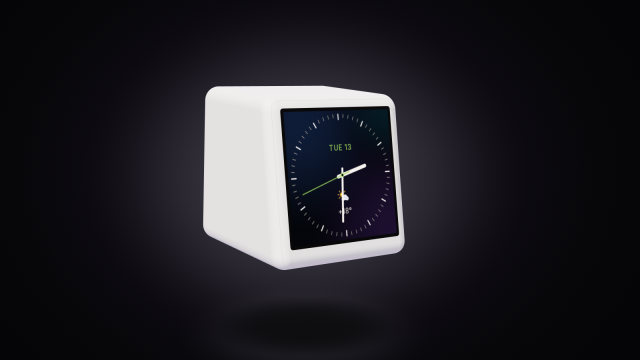 Build your own watch face for the SmallTV-UltraDesign a custom watch face for the GeekMagic SmallTV-Ultra in ToyTool Studio or as JSON: elements, live data, recolouring store faces, limits.
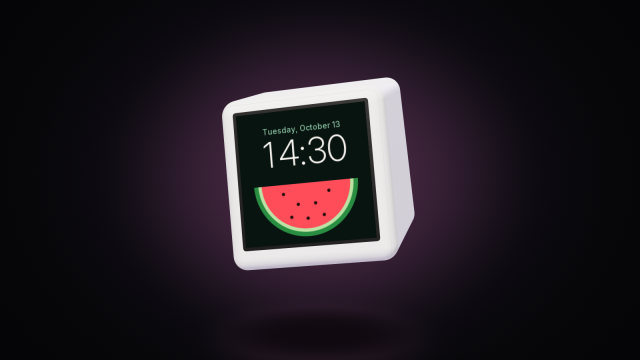 SmallTV watch face format reference (JSON)Every field of a ToyTool watch face for the GeekMagic SmallTV-Ultra: backgrounds, colours, the 14 element types, live-data variables and limits.
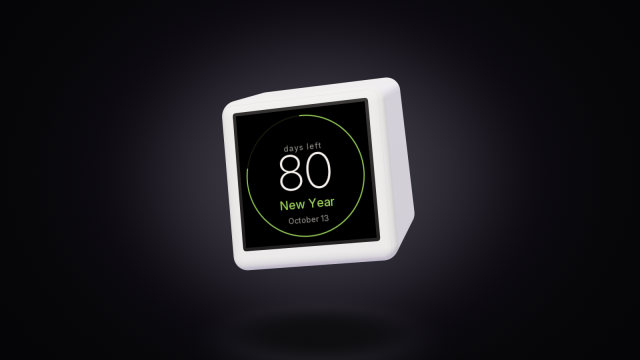 A countdown to any date on the SmallTV-UltraCount the days to a trip, a launch or retirement on a GeekMagic SmallTV-Ultra. The built-in countdown, more timers from a script, and the limits.