ToyTool Firmware
A countdown to any date on the SmallTV-Ultra
Count the days to a trip, a launch or retirement on a GeekMagic SmallTV-Ultra. The built-in countdown, more timers from a script, and the limits.
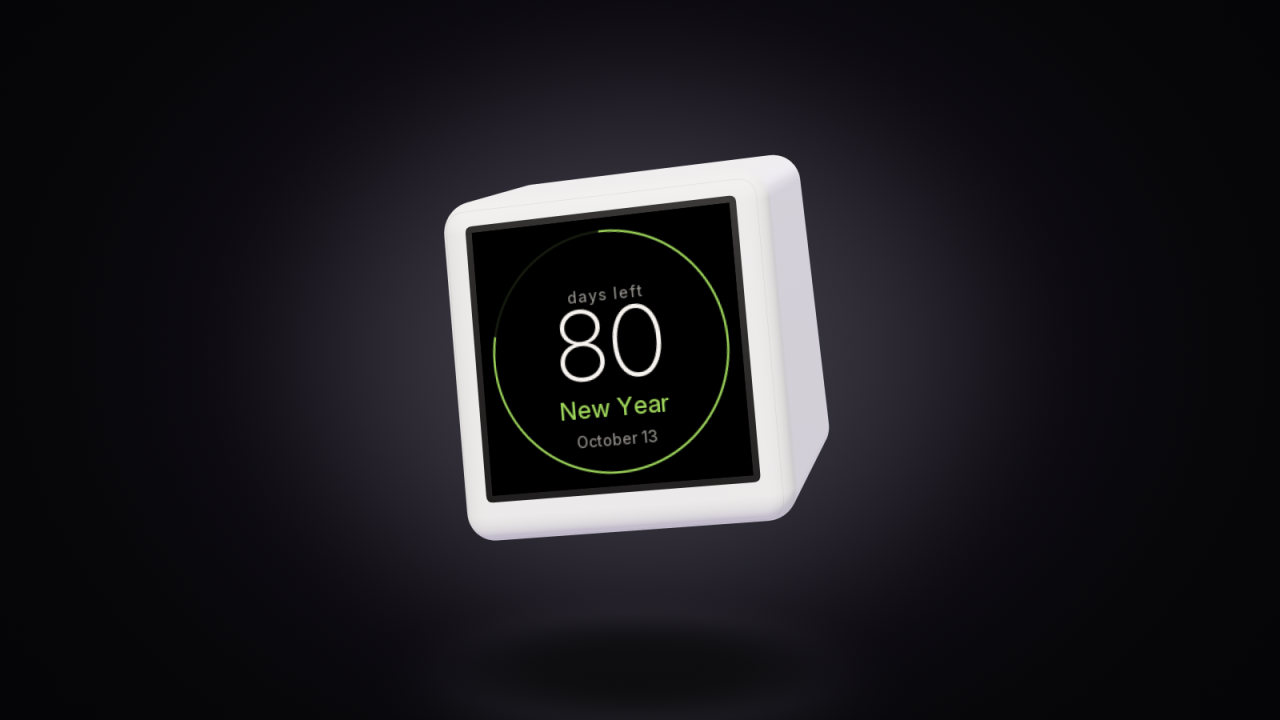
A GeekMagic SmallTV-Ultra running ToyTool Firmware counts the days to one event of your choice: a trip, a wedding, a launch, the last day at work. Name the event and pick the date in your ToyTool account. The screen does the rest on its own clock: once it has the time after power-up, the number changes at midnight even if the internet drops out.

Set it up
- In your account, open Faces and add either the built-in Countdown screen or the Countdown face to your screen. Both are in the Data collection. The built-in screen is off on a new screen, so it has to be added.
- On the screen’s card, tap the countdown and press Settings.
- Type the event’s name (up to 39 characters) and pick the date. Changes reach the screen within seconds.

There’s one countdown per screen, and the built-in screen and the face share it. Two screens on one account can count down to different things.
How it counts
- Whole days, in the screen’s time zone. The number is the difference between today’s date and the event’s date on the screen’s clock. It changes at local midnight, not 24 hours after you set it.
- On the day itself the built-in screen shows “0 today”.
- After the date both count up again: the day after the event shows 1, then 2. The built-in screen says “1 day”, but the face keeps its “days left” label, so set the next date when the event is over (or let the script below do it).
- The face’s ring is the year, not the event. It runs from January 1 and closes at New Year, whatever date you count down to.
Move it to the next date by itself
Birthdays and anniversaries come back every year. This script picks the nearest of your dates and points the screen’s countdown at it. It talks to the screen directly over your home network (Python 3, nothing to install), and changes the setting only when the next date is a different one.
"""Point the screen's countdown at the nearest of your yearly dates. Run it once a day."""
import datetime
import json
import urllib.request

SCREEN = "http://192.168.1.50"   # your screen's address
DATES = {                        # name (up to 39 characters): (month, day)
    "Mum's birthday": (2, 3),
    "Our anniversary": (6, 21),
    "Christmas": (12, 25),
}


def call(path, body=None):
    data = json.dumps(body).encode() if body else None
    req = urllib.request.Request(SCREEN + path, data=data, headers={"Content-Type": "application/json"})
    return json.load(urllib.request.urlopen(req, timeout=10))


def next_time(today, month, day):
    for year in (today.year, today.year + 1):
        try:
            date = datetime.date(year, month, day)
        except ValueError:                 # February 29 in a common year
            date = datetime.date(year, 2, 28)
        if date >= today:
            return date
    return date


today = datetime.date.today()
name, date = min(((n, next_time(today, m, d)) for n, (m, d) in DATES.items()), key=lambda x: x[1])
now = call("/api/config")
if (now.get("cdTitle"), now.get("cdDate")) != (name, date.isoformat()):
    # "refetch": false - only the countdown changed, the weather and rates needn't be fetched again
    call("/api/config", {"cdTitle": name, "cdDate": date.isoformat(), "refetch": False})
    print("countdown now:", name, date)
Put your screen’s address in SCREEN. The screen flashes it as “Connected 192.168.…” after it joins Wi‑Fi, and the
screen’s card in your account shows it when Local network address is on. Then run the script once a day, a few
minutes after midnight: a cron line such as 5 0 * * * python3 /home/pi/next_date.py on a Raspberry Pi, Linux or a
Mac, or a daily task in Windows Task Scheduler. The new event shows up in your account too, because the screen
reports its settings back.
For a single change, one request is enough:
curl -X POST http://192.168.1.50/api/config -H "Content-Type: application/json" \
  -d '{"cdTitle": "Trip to Japan", "cdDate": "2027-03-28", "refetch": false}'
Write the date as YYYY-MM-DD with leading zeros: a date in any other shape turns the countdown off.
More countdowns, or hours and minutes
The built-in countdown is one event in whole days. For more events, or a launch that’s hours away, send widgets to the screen with the widget API. Each countdown becomes a page in the rotation with a big number. With a start date it also gets a bar that shows how much of the wait is behind you.

"""More countdowns, down to the minute, as widget pages on the screen. Leave it running."""
import datetime as dt
import json
import time
import urllib.request

SCREEN = "http://192.168.1.50"   # your screen's address
COUNTDOWNS = [
    # id (letters and digits), title, the moment, and when the wait began (for a progress bar) or None
    ("retire", "Retirement", "2031-06-30 17:00", "2004-09-01 09:00"),
    ("launch", "Launch", "2027-01-29 18:00", None),
]


def send(widget):
    req = urllib.request.Request(f"{SCREEN}/api/widget", data=json.dumps(widget).encode(),
                                 headers={"Content-Type": "application/json"})
    urllib.request.urlopen(req, timeout=5).read()


def page(wid, title, when, began, now):
    end = dt.datetime.fromisoformat(when)
    left = max(dt.timedelta(0), end - now)
    hours, minutes = left.seconds // 3600, left.seconds % 3600 // 60
    date = f"{end:%B} {end.day}, {end.year}"
    w = {"id": wid, "title": title, "ttl": 180}       # gone 3 minutes after the script stops
    if left.days >= 1:                                # "\n" starts the caption's second line
        w.update(value=f"{left.days:,}", unit="days", sub=f"and {hours} h {minutes} min\n{date}")
    elif left:
        day = "today" if end.date() == now.date() else "tomorrow"
        w.update(value=f"{hours}:{minutes:02d}", unit="left", sub=f"until {end:%H:%M} {day}")
    else:
        w.update(value="0", unit="", sub=f"It's here\n{date}")
    if began:
        start = dt.datetime.fromisoformat(began)
        w["progress"] = round(min(1, (now - start) / (end - start)), 4)
        if left.days >= 1:
            w["sub"] = f"{w['progress']:.0%} of the way\n{date}"
    return w


while True:
    now = dt.datetime.now()
    for c in COUNTDOWNS:
        try:
            send(page(*c, now))
        except OSError as e:          # the screen is off or out of reach: try again next minute
            print("screen:", e)
    time.sleep(60 - dt.datetime.now().second)
It updates every minute, using the time on the computer it runs on, so keep that computer’s clock and time zone
right. The ttl of 180 seconds means the pages disappear three minutes after the script stops instead of freezing.
Such short-lived widgets are never written to the screen’s flash memory. A screen holds up to four widgets in total,
shared with anything else you send to it.
In your own watch face
Faces read the countdown through two variables: {cd_title} is the event’s name and {cd_days} the number of days.
In ToyTool Studio the {…} button inserts them, and a face that uses them
gets the same Settings with the name and date. The
face format reference lists the rest. The widget countdowns above can go into a face as well: send them
with "page": false and read {w_retire} and {w_retire_s}.
Limits
- One built-in countdown per screen, in whole days. More events, or hours and minutes, need a script running on a computer, a Raspberry Pi or a home server.
- After the event it counts up without saying “since”, until you set the next date.
- The face’s ring shows the year, not the progress toward your event. A bar toward your event needs the widget script.
- The name is drawn with the screen’s fonts: Latin and Cyrillic letters, digits and common signs, no emoji or accented letters.
The countdown is one page among many in ToyTool Firmware: put it in the rotation next to the clock and the weather. For a reminder that pops up at a certain time, see notifications in the widget guide.
Sources: the firmware’s source (src/ui/ui.cpp, src/main.cpp, src/config.cpp) and the ToyTool account; the pictures are firmware renders and a screenshot from a test account. The scripts were run against a stand-in for the screen’s API built from src/web/web.cpp.
Faces from this guide

Read next

 A Claude Code usage display for your deskYour Claude Code session and weekly limits, time to reset and today’s tokens on a GeekMagic SmallTV-Ultra desk screen. One Node script, no soldering.
 Bitcoin and crypto prices on the SmallTV-UltraThe stock GeekMagic SmallTV-Ultra has no crypto ticker. How to show Bitcoin, Ethereum and currency rates on it, where prices come from, and the limits.