ToyTool Firmware
How to reset a SmallTV-Ultra (and fix boot loops)
Factory reset, Wi‑Fi reset and boot-loop fixes for a GeekMagic SmallTV-Ultra on stock firmware, plus safe mode and reflashing on ToyTool Firmware.
“Reset” means three different things on a GeekMagic SmallTV-Ultra: making it forget your Wi‑Fi, clearing its settings, or putting its firmware back on. Pick the one you need from the table, then follow that section. The stock firmware comes first, ToyTool Firmware after it.
Written for GeekMagic’s stock firmware V9.0.50 and ToyTool Firmware 1.16.0.
Which reset do you need?
| What you see | Stock firmware | ToyTool Firmware |
|---|---|---|
| You changed your router or Wi‑Fi password | Opens its GIFTV hotspot by itself (or use the unplug trick) | Opens ToyTool-Setup by itself |
| Settings are a mess, but it runs | Factory reset on the Settings page | Fix them in your ToyTool account — there’s no reset button |
| It restarts over and over | Power supply, settings, then reflash | Safe mode starts by itself; reflash from there |
| You want the other firmware | Upload it at /update | Upload it in the Firmware section |
Stock firmware: factory reset from the web page
Open the screen’s address in a browser, go to the Settings page (http://<screen-ip>/settings.html) and find 5. Factory Reset. Click RESET and confirm — the confirmation says it erases all settings and restarts the screen. The page itself notes that files you uploaded (photos and GIFs) aren’t affected. 6. Reboot next to it only restarts the screen.
If the screen can’t join a network after the reset, it opens its setup hotspot: join GIFTV, open http://192.168.4.1 and set your network again, as in the setup guide.
Stock firmware: reset without the web page
If you can’t reach the web page, GeekMagic’s manual (V9.0.30) describes a power trick: plug the screen in, and while the progress bar is on the screen, unplug it straight away. Do this twice; on the third start it opens its own GIFTV hotspot so you can set it up again.
Stock firmware: boot loops
Two long threads in GeekMagic’s issue tracker cover screens that keep restarting. What owners reported there:
- V9.0.41, a restart every ~30 seconds (#173): one owner blamed a “smart” USB-C charger that cuts power when the draw is low, and another got much better stability from a different adapter. Others linked restarts to the weather settings, or to a network without internet access. GeekMagic released 9.0.42 (with power-related changes) and 9.0.43.2, then closed the issue, writing that the cause was still not clear. Results were mixed.
- V9.0.31, restarts within seconds of joining Wi‑Fi (#131): GeekMagic pointed to limited memory and to a forecast API key set up with the wrong options. Setting the key exactly as their instructions say fixed it for one owner.
What to try, in this order:
- Change the power. Use the original cable and a plain 5 V adapter of at least 1 A, not a USB-C-to-USB-C cable (the manual says those aren’t supported) or a “smart” fast charger.
- Clear the weather keys. If the screen stays up long enough to open its pages, empty the API key fields on the Weather page, or do a factory reset.
- Reflash a different stock version. GeekMagic publishes the firmware files in their GitHub repository; upload one at
http://<screen-ip>/update. V9.0.50 is the newest folder there. - If it restarts before any page loads, there’s no way in over Wi‑Fi. The USB-C port only supplies power — the board has no USB-to-serial chip — so the only route left is opening the case and flashing it over serial.
ToyTool Firmware: safe mode
ToyTool counts its starts. If it crashes within 20 seconds of starting three times in a row, the fourth start is safe mode: it connects to Wi‑Fi and runs its web page, and nothing else — no faces, no weather, no account sync. The screen shows “Safe mode” and its address. Once a start has run for 20 seconds, the count goes back to zero.

To get out of safe mode:
- Open the address shown on the screen in a browser on the same Wi‑Fi.
- In Firmware, choose the latest
.bin.gz(or.bin) from your account’s Firmware page and click Flash. - The screen restarts normally. Faces, settings and the link to your account stay.
If you’re reporting a crash to us, open http://<screen-ip>/api/state first: after a crash it includes exception and trace fields that show where the firmware stopped.
ToyTool Firmware: Wi‑Fi and settings
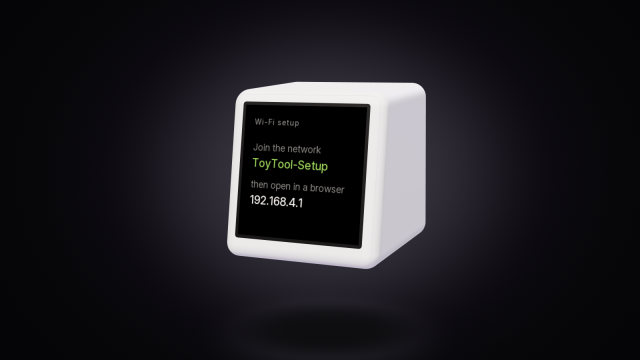
- New router or password: if the screen can’t join its saved network, it opens the open network ToyTool-Setup by itself (on firmware older than 1.17 it’s called SmallTV-Setup). Join it and pick your Wi‑Fi at
http://192.168.4.1— the Wi‑Fi guide explains the messages. While the screen is still online, you can switch networks on its page: Wi‑Fi → Change. - Settings: there’s no factory-reset button in firmware 1.16.0. The things a reset would fix each have their own control instead: city, language, brightness and night mode in your account; faces in the screen’s rotation; Wi‑Fi on the screen’s page.
- Unlinking a screen in your account frees its licence for another screen. The faces and settings stay on the screen, which goes back to showing its activation code.
Going back to the stock firmware
With ToyTool installed, open the screen’s page, choose GeekMagic’s firmware file (for example FW-Smalltv-Ultra-V9.0.50.bin from their repository) under Firmware and click Flash.
Your stock settings, photos and GIFs won’t come back: they lived in the screen’s file storage, which ToyTool reuses for its own files. The stock web console also loads its scripts and styles from that storage rather than from the firmware file, so we can’t promise it comes back complete. If you plan to go back, ask us first.
Sources: the firmware’s source code, the stock V9.0.50 firmware file, GeekMagic’s manual and public GitHub issues.
Read next
 SmallTV-Ultra weather not updating? How to fix itWhy the GeekMagic SmallTV-Ultra shows old or wrong weather on stock firmware — city, API keys, versions — and how ToyTool Firmware gets it without a key.
 GeekMagic SmallTV-Ultra won't connect to Wi-FiWhy a SmallTV-Ultra won’t join Wi‑Fi, loops on “Connect WiFi” or shows “IP unset”: fixes for stock firmware, and what ToyTool Firmware does.
 SmallTV-Ultra wrong time: time zone, DST and NTPWhy a GeekMagic SmallTV-Ultra shows the wrong time, an hour off or 1970 — city, UTC offset, daylight saving, NTP — and how ToyTool Firmware keeps time.