ToyTool Firmware
SmallTV-Ultra setup: first boot, IP and settings
Set up a GeekMagic SmallTV-Ultra — the GIFTV hotspot, finding its IP address, what the stock settings pages do — and how setup works on ToyTool Firmware.
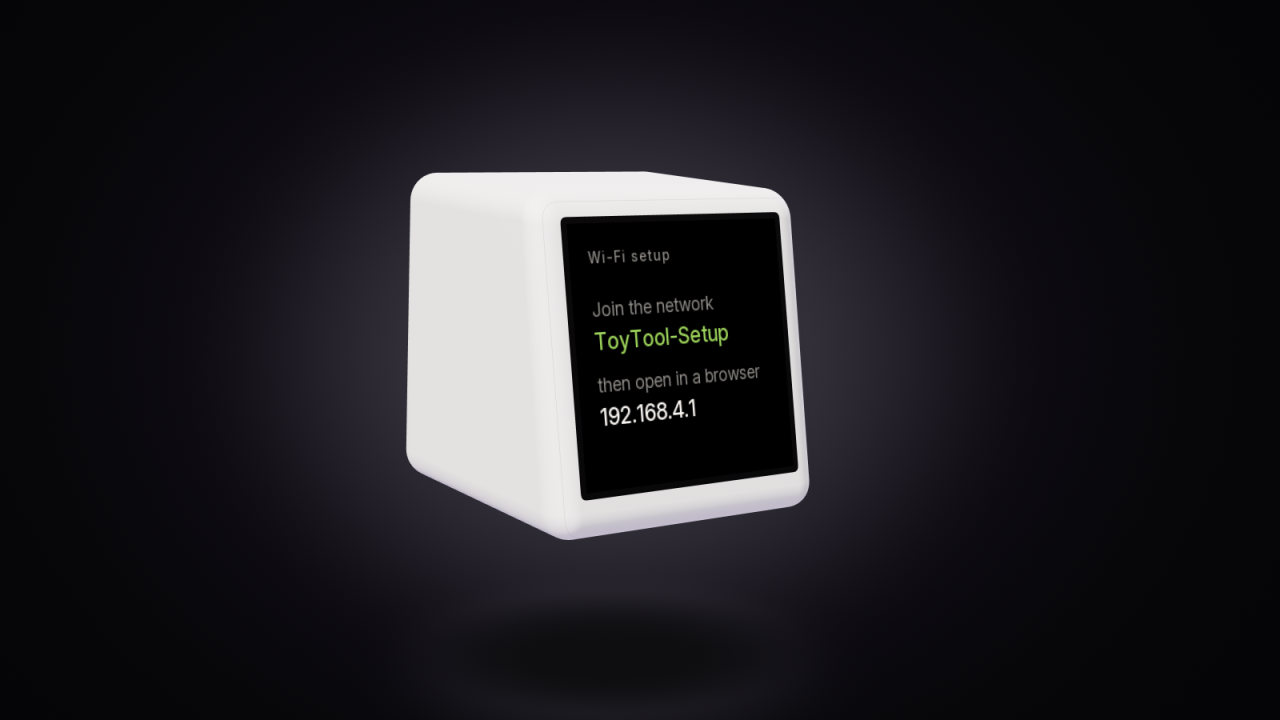
Setting up a GeekMagic SmallTV-Ultra takes a few minutes and a phone. On first start it opens its own Wi‑Fi hotspot; you connect to it, choose your home network, and from then on the screen shows its IP address every time it starts. You type that address into a browser to reach its settings. This guide walks through the stock firmware first, then how the same steps look with ToyTool Firmware.
Written for GeekMagic’s stock firmware V9.0.50 and ToyTool Firmware 1.16.0.
What you need
- The screen and its USB cable. GeekMagic’s manual asks for a 5 V power adapter of at least 1 A and says USB-C-to-USB-C cables aren’t supported.
- A 2.4 GHz Wi‑Fi network with a WPA2 password. The screen can’t see 5 GHz networks.
- A phone or a computer with a browser. No app is needed.
First start on the stock firmware
- Plug it in. With no network saved, the screen starts in setup mode and opens a hotspot called GIFTV.
- Join GIFTV from your phone. Your phone may warn that the network has no internet — that’s expected; stay connected.
- Open
http://192.168.4.1in the phone’s browser. If the page doesn’t load, turn off mobile data and try again; some phones avoid a Wi‑Fi network without internet. - Choose your network. Tap Network, then Scan, pick your Wi‑Fi, enter its password and save.
- Note the address. The screen restarts, joins your network and shows its new IP address, for example
192.168.1.103. The GIFTV hotspot disappears.
Now connect your phone or computer back to your home Wi‑Fi and open that address in a browser. That’s the screen’s web console, where every other setting lives. Stuck at any of these steps? The Wi‑Fi guide covers the usual causes.
Finding the screen’s IP address
- On the screen. The stock firmware shows its address each time it starts and connects.
- In your router. Open the router’s list of connected devices. (On ToyTool the screen calls itself
smalltvthere.) - Keep it from changing. Routers sometimes hand out a different address after a restart. Reserve one for the screen in the router’s DHCP settings — the address then stays the same, and bookmarks keep working.
The stock web console, page by page
These are the settings pages built into stock V9.0.50 (we read them from the firmware file itself):
| Page | What you can set |
|---|---|
Time (/time.html) | Time zone (automatic from your city, or a manual UTC offset), digit colours, 12/24-hour format, date format, blinking colon, clock font, your own NTP time server |
Weather (/weather.html) | City (name, City,CC or OpenWeatherMap city ID), units (°C/°F, wind, pressure), update interval, your own weather and forecast API keys, a GIF for the weather screen |
Settings (/settings.html) | Theme, automatic theme switching (marked experimental), brightness, night mode with its own brightness, factory reset, reboot, firmware update with the model and version |
Image (/image.html) | Photos and GIFs (JPG and GIF only, 240×240), automatic slideshow and its interval |
| Network | Your Wi‑Fi network |
A few things worth knowing:
- City first. GeekMagic’s manual says the screen takes its time zone from the weather city, so set the city before you fix the clock. The weather guide covers city IDs and API keys.
- 12/24-hour and °C/°F are on the Time and Weather pages.
- Storage for pictures is small: the manual mentions about 1 MB for your own images.
- Language. We haven’t found a setting for the screen’s language in V9.0.50.
Setup with ToyTool Firmware
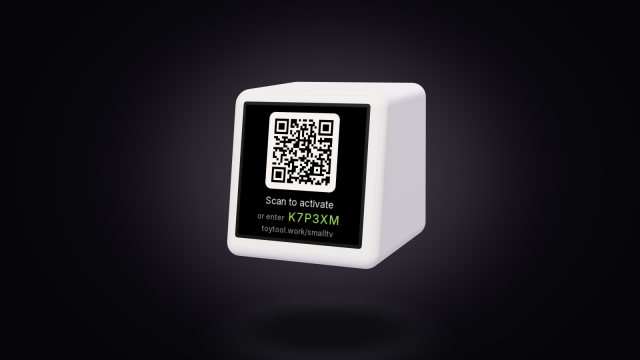
With ToyTool there’s no IP address to hunt for. After the install, the screen joins the Wi‑Fi the stock firmware used and shows a QR code with a six-character code under it. Scan it with your phone: your ToyTool account opens with the code already filled in, and Link screen connects the screen to your account. (Installing it is covered in How to install custom firmware on SmallTV-Ultra.)


Then your account offers a few faces to start with. Until you pick, the screen shows a second QR code that leads to the same place.
From then on everything is in your account, on any device, even away from home: the faces and their order, what the screen shows (by turns, one face, or a schedule), and the screen’s settings.

| Setting | Where on ToyTool |
|---|---|
| City (weather and time zone) | Account → screen Settings → City & time |
| Screen language (English or Russian) | Account → screen Settings |
| Accent colour, brightness, night mode | Account → screen Settings |
| Faces, rotation, one face or a schedule | The screen’s card in your account |
| YouTube and Notion keys | Account → Connectors |
| Wi‑Fi, firmware file, photos, your own API widgets | The screen’s own page at http://<screen-ip>/ |
Two differences from stock to know about: ToyTool shows the time in 24-hour format and temperatures in °C, and there’s no setting for either in firmware 1.16.0. A new screen also starts with Moscow’s weather and time — your account notices if your browser is elsewhere and offers your city.
The screen’s own page is still there for things that belong on your home network. Your account links to it from the screen’s Settings → Screen’s page on your home network (the screen reports its local address for this; you can switch that off under Privacy).
Where to find GeekMagic’s manual
GeekMagic keeps a PDF user manual (version V9.0.30) and manuals in other languages in their GitHub repository, next to the firmware files. It’s older than the V9.0.50 firmware, so a few pages look different — the Time page, for example, no longer has a separate DST switch.
Next: which SmallTV model you have, and what to do if the screen needs a reset.
Sources: the firmware’s source code, the stock V9.0.50 firmware file, GeekMagic’s manual and public GitHub issues.
Read next
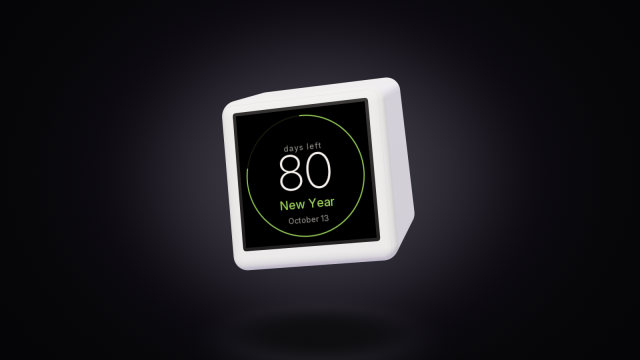 A countdown to any date on the SmallTV-UltraCount the days to a trip, a launch or retirement on a GeekMagic SmallTV-Ultra. The built-in countdown, more timers from a script, and the limits.
 How to install custom firmware on SmallTV-UltraPut ToyTool Firmware on a GeekMagic SmallTV-Ultra from your browser with a small installer, what the screen shows, and what to do when it stops.