ToyTool Firmware
SmallTV-Ultra vs Pro: which GeekMagic do you have?
SmallTV-Ultra, SmallTV Pro or an ESP32 “smart weather clock”? How to tell GeekMagic’s desk screens apart, what chip each uses and which firmware fits.
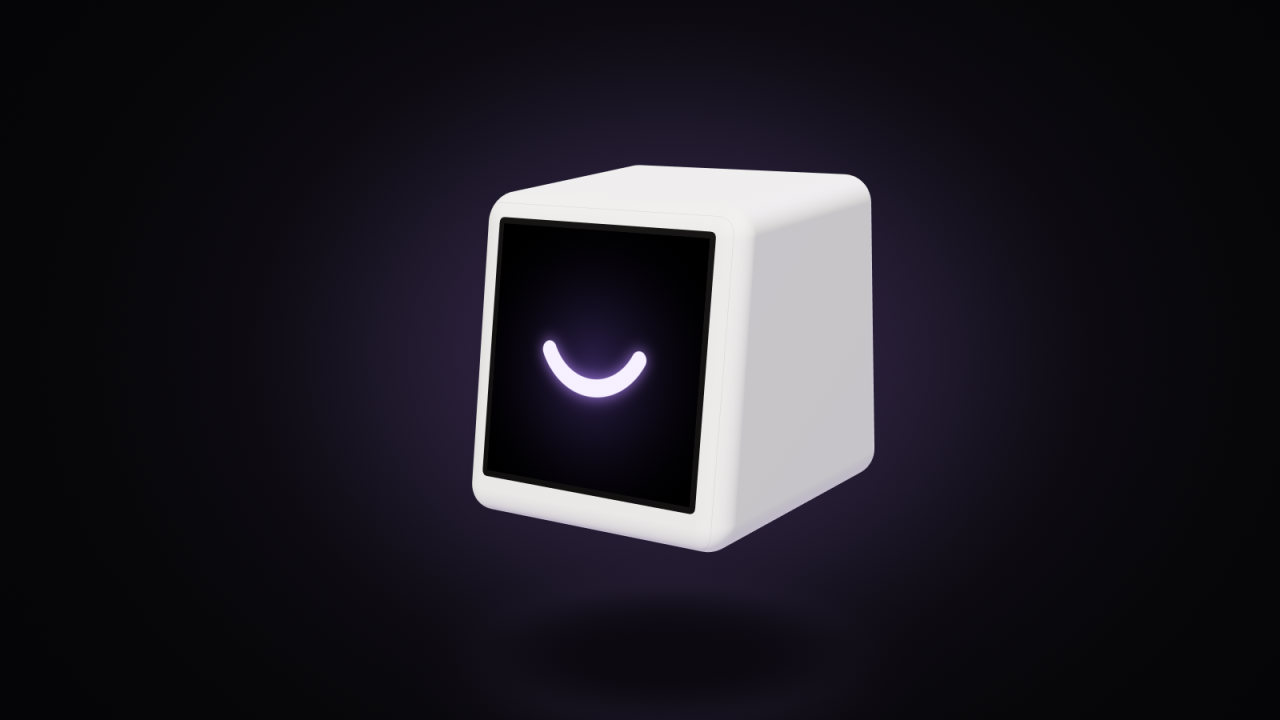
GeekMagic’s little square desk screens look almost the same from the front, and shops often sell all of them as a “smart weather clock”. Inside, they differ: the SmallTV-Ultra runs on an ESP8266, the SmallTV Pro on an ESP32 and has a touch button on top, and there’s also a version of the weather-clock design built on an ESP32-C2. Which one you have decides which firmware it can run — firmware for one model doesn’t work on another.
The short answer
| SmallTV-Ultra | SmallTV Pro | ESP32-C2 “smart weather clock” | |
|---|---|---|---|
| Chip | ESP8266 (ESP-12F module), 4 MB flash | ESP32, 8 MB flash | ESP32-C2 (ESP8684) |
| Touch button on top | No | Yes | — |
| USB-C | Power only, no USB-to-serial chip | — | CH340C USB-to-serial chip next to the port |
| Stock firmware shows stocks and crypto | No | Yes | — |
| ToyTool Firmware | Yes | No | No |
A dash means we haven’t found a reliable source. Sources: GeekMagic’s own README for which model uses which chip, the hardware list in smalltv-mod for the flash sizes and the tell-tale chips, Hackaday’s July 2026 article on the ESP32-C2 variant, and Neil Turner’s SmallTV Pro write-up for stocks and crypto. The Ultra column is also what we know first-hand: ToyTool is developed on a GeekMagic-branded SmallTV-Ultra.
GeekMagic’s manual gives the Ultra’s screen as a 1.5-inch, 240×240 IPS panel and the body as 35 × 39 × 45 mm.
How to tell them apart
- Look at the top. A touch button there means a SmallTV Pro.
- Check the stock web console. Open the screen’s address in a browser and go to the Settings page: its firmware section shows the Model and Ver. On the Ultra, the firmware names itself
SmallTV-Ultra, and versions read likeUltra-V9.0.50. GeekMagic’s README warns that different models share the same CPU, so check this before you install anything. - Look near the USB-C port if you can see the board. A CH340C chip next to the port marks the ESP32-C2 version; the ESP8266 boards have no USB-to-serial chip at all.
- Read the listing. A “SmallTV-Ultra” or “SmallTV Pro” name from GeekMagic’s own store is the clearest sign. A plain “smart weather clock” or “desktop weather station” title tells you little — check the photos for a touch button and the description for the chip.

Counterfeits and unbranded screens
GeekMagic’s README says that products “labeled unbranded or with other brand names are likely counterfeits”, and that screens carrying the GeekMagic trademark are the real Ultra. We can’t say whether unbranded lookalikes use the same parts. If a screen’s stock web console doesn’t identify it as a SmallTV-Ultra, don’t flash Ultra firmware on it.
Which one for custom firmware?
- SmallTV-Ultra. The most options: ToyTool (designed watch faces, an online account, updates over the air), ESPHome for Home Assistant users, and open-source firmwares such as smalltv-mod and GeekMagic-Open-Firmware. You can also leave the stock firmware on and send pictures to it from Home Assistant with the geekmagic-hacs integration.
- SmallTV Pro. smalltv-mod lists it; Home Assistant users also drive it through geekmagic-hacs without flashing. ToyTool doesn’t run on it.
- ESP32-C2 version. smalltv-mod supports it. ToyTool doesn’t run on it.
ToyTool is built only for the Ultra because it’s written around that board: the ESP8266’s memory, the Ultra’s screen wiring, and the way its stock firmware lays out the flash. A Pro or ESP32-C2 screen would need a different firmware altogether. If you already have an Ultra, the ToyTool Firmware page shows what your screen turns into.
Where to buy
GeekMagic sells its screens through its website, geekmagic.cc, and lists its official AliExpress stores (an Official Store and an Outlet Store, with separate listings for the Ultra and the Pro) in its GitHub README. There are no affiliate links on this page.
Got the screen? Next: set it up, and if it won’t join your network, the Wi‑Fi guide.
Sources: GeekMagic’s README and manual, the stock V9.0.50 firmware file, the open-source projects linked above and ToyTool’s own hardware notes.
Read next
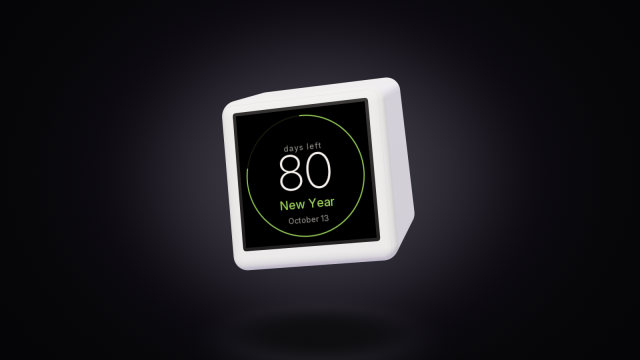 A countdown to any date on the SmallTV-UltraCount the days to a trip, a launch or retirement on a GeekMagic SmallTV-Ultra. The built-in countdown, more timers from a script, and the limits.
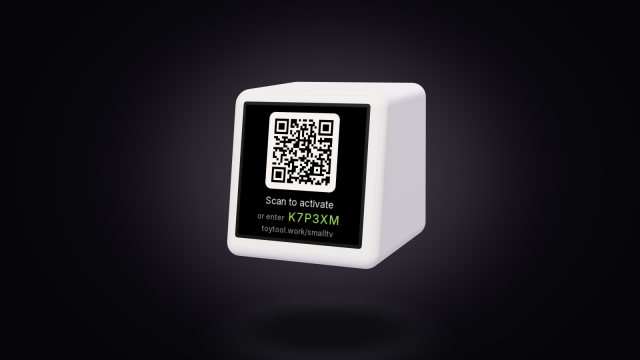 How to install custom firmware on SmallTV-UltraPut ToyTool Firmware on a GeekMagic SmallTV-Ultra from your browser with a small installer, what the screen shows, and what to do when it stops.