ToyTool Firmware
GeekMagic SmallTV-Ultra won't connect to Wi-Fi
Why a SmallTV-Ultra won’t join Wi‑Fi, loops on “Connect WiFi” or shows “IP unset”: fixes for stock firmware, and what ToyTool Firmware does.
Most Wi‑Fi trouble with the GeekMagic SmallTV-Ultra comes down to a handful of causes: a 5 GHz or WPA3-only network, a mistyped password, a router feature the screen’s ESP8266 chip doesn’t get along with, or a router that comes back after a power cut later than the screen does. Start with the quick checks below. Each section then covers the stock firmware first and ToyTool Firmware second.
Written for GeekMagic’s stock firmware V9.0.50 and ToyTool Firmware 1.16.0.
Quick checks
| Check | Why it matters |
|---|---|
| The network is 2.4 GHz | The ESP8266 radio only does 2.4 GHz. A 5 GHz network never shows up in its list. |
| The network uses WPA2 (or WPA2/WPA3 mixed) | The ESP8266 doesn’t support WPA3, so a WPA3-only network can’t work. |
| No sign-in page or company login | Networks that need an account or a captive sign-in page fail — GeekMagic’s manual says so too. |
| The password is exactly right | Letters are case-sensitive. Some symbols caused trouble on stock (see below). |
| Steady power | GeekMagic’s manual suggests trying another USB cable and adapter: 5 V, at least 1 A. |
| A phone hotspot works | Set the hotspot to 2.4 GHz; on an iPhone, turn on Maximize Compatibility. If the screen joins the hotspot but not your router, the router is the place to look. |
Stock firmware: the setup hotspot and the “Connect WiFi” loop
When the stock firmware can’t join a saved network — or has none yet — it opens its own hotspot, GIFTV. Join it from your phone, ignore the “no internet” warning, and open http://192.168.4.1. Then, per GeekMagic’s manual: Network → Scan, pick your network, enter the password and save. The screen restarts, joins your network and shows its new IP address. If 192.168.4.1 won’t open, switch off mobile data — some phones avoid a Wi‑Fi network that has no internet.
Some units never get that far. In GeekMagic’s issue #193, owners on V9.0.41 to V9.0.50 describe a loop: a “Connect WiFi” progress bar, a setup screen that flashes for a moment, a restart — and no GIFTV network to join. Factory resets, cables and reflashing didn’t reliably help. GeekMagic suspected faulty Wi‑Fi hardware on some units and suggested a workaround that worked for several people: create a temporary 2.4 GHz hotspot named 1024 with the password 2048@@@@ so the screen can connect, then set your real network from its web page. Those two values are written into the V9.0.50 firmware file, which suggests the firmware tries that network on its own. Some owners got a refund instead.
“IP unset”, or connected but no address
(IP unset) is how the ESP8266’s software prints an empty IP address. The screen either didn’t join the network, or joined it and never got an address from the router. An address starting with 169.254. (reported in issue #59) means the same thing: the router’s DHCP never answered.
The second case is the sneaky one, because the router may list the screen as connected. A friend’s screen did exactly this on ToyTool 1.14.0: the router showed it, but it never got an address. On that router, the ESP8266’s Wi‑Fi power saving combined with 802.11n made it lose most of its packets, so the request for an address kept timing out. In firmware 1.14.1 I switched the power saving off (the screen always runs on USB power anyway) and made it connect in the older 802.11g mode first. The same symptom is still open on the stock firmware: in issue #276, the router hands out an address and the connection then drops.
Router settings that help
- Give 2.4 GHz its own network name if your router merges 2.4 and 5 GHz under one name, or use a guest network on 2.4 GHz for the screen.
- Turn off Wi‑Fi 6 (802.11ax) on 2.4 GHz, or put the screen on a 2.4 GHz guest network without it. GeekMagic’s manual names compatibility problems with Wi‑Fi 6 routers, especially ASUS.
- Allow the older modes. GeekMagic’s manual asks for 802.11b/g to be enabled; “b/g/n mixed” is the safe choice on 2.4 GHz.
- Reserve an address for the screen in the router’s DHCP settings, so its IP doesn’t change after a restart. ToyTool has no static-IP setting; a reservation on the router does the same job.
- Restart the router. It’s in GeekMagic’s list for a reason.
After a power cut or a router restart
If the power comes back and the screen starts before the router is ready, it can’t connect. On the stock firmware this shows up as the setup screen, or a clock that never reconnects, with the wrong time and weather (issue #260, on 9.1.54 and 9.1.55). Unplugging the screen once the Wi‑Fi is back fixes it, and on the 9.1.x firmware GeekMagic’s answer was to set a boot delay in the network options.
ToyTool handles this by itself: if it can’t connect when it starts, it opens its setup network, and if nobody joins that network it restarts about five minutes after it started and tries your Wi‑Fi again.
Passwords with symbols, and hidden networks
On the stock firmware, issue #274 reports that a password containing characters such as =, \, . or / wasn’t saved correctly; the reporter needed to escape the dot. If your password has symbols, test with a phone hotspot that has a plain password to rule this out.
ToyTool’s setup page sends the password exactly as typed, symbols included (up to 64 characters). Tick Show password to check for typos — and if the attempt fails, the page tells you how many characters were saved.
The setup page lists only the networks the screen can see, so a hidden network won’t appear. Make it visible while you set the screen up.
How ToyTool Firmware connects — and tells you why it didn’t
On every start, ToyTool keeps Wi‑Fi power saving off and tries your network up to three times: 30 seconds in 802.11g, then 20 seconds in 802.11n (for routers set to “n only”), then 20 seconds in 802.11g again. A wrong password ends it after the first try — there’s no point in repeating it. Then it tries the network the chip remembers from the stock firmware, if that’s a different one.
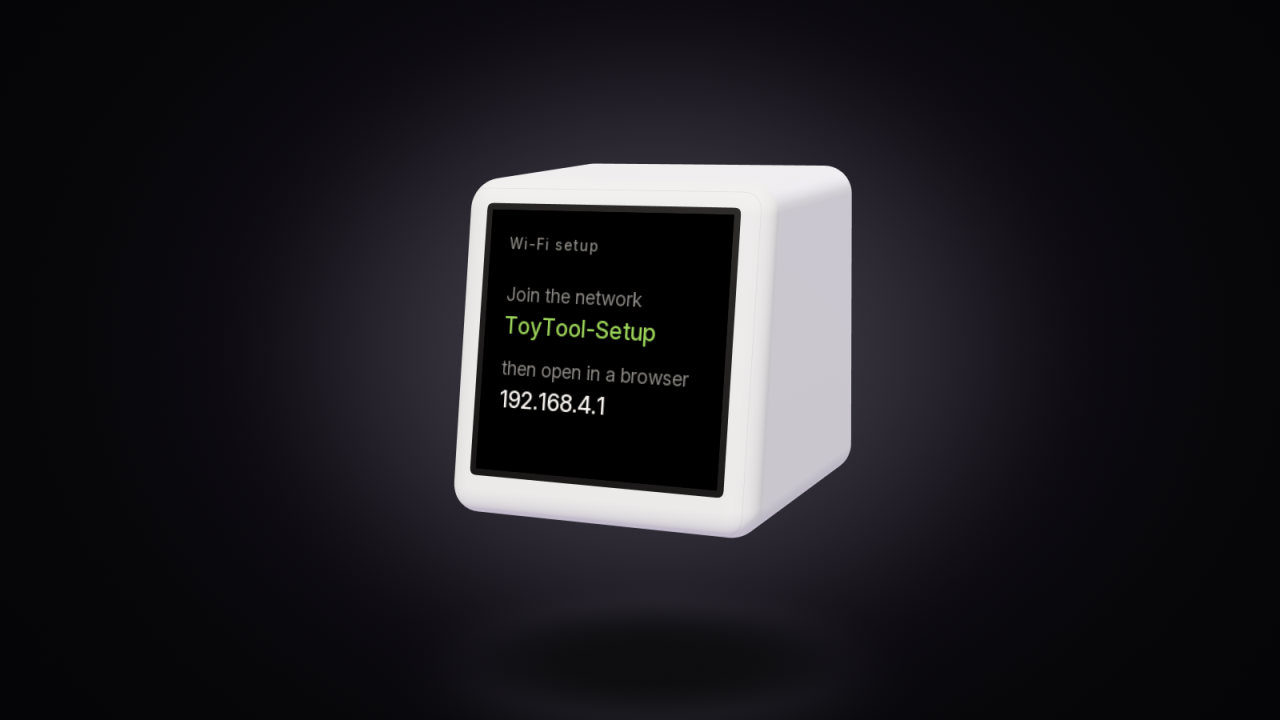
If nothing works, it opens an open network called ToyTool-Setup and shows the reason on the screen. (Screens on firmware older than 1.17 call it SmallTV-Setup.)

Join ToyTool-Setup from your phone and open http://192.168.4.1. Pick your network, type the password and tap Connect; the screen restarts and tries again.

What the reasons mean:
| On the screen | What happened | What to try |
|---|---|---|
| wrong password | The router rejected the password | Retype it with Show password on |
| network not found | No 2.4 GHz network with that name in range | Check the name, the band and the distance |
| the router refused | The router turned the connection down | Check the router’s device limit or MAC filter, and that it allows WPA2 |
| no answer from the router | No address within the time limit | The “IP unset” case above — try the router settings |
The log page
The Log link on the setup page (http://192.168.4.1/log) shows the last few lines the screen wrote while starting: each Wi‑Fi attempt, how long it took, the mode, a status number and the password length. It works on your home network too, at http://<screen-ip>/log. A failed start looks like this (the wording is the firmware’s; the times are examples):
   0.0 ToyTool 1.17.0, reset: Power On, boots 1
  30.2 wifi 'HomeWiFi': failed after 30s, 11g, status 7, password 12 chars
  50.4 wifi 'HomeWiFi': failed after 20s, 11n, status 7, password 12 chars
  70.6 wifi 'HomeWiFi': failed after 20s, 11g, status 7, password 12 chars
  70.7 setup network ToyTool-Setup, last try: HomeWiFi — no answer from the router
The status number is the ESP8266’s own: 1 network not found, 4 connection refused, 6 wrong password, 7 still waiting (usually no address from the router). A successful line reads ok in 3s, 11g, 192.168.1.50, -52 dBm, ch 6: the address, the signal strength and the Wi‑Fi channel.
Still stuck?
- Try a phone hotspot on 2.4 GHz. If that works, the problem is in the router settings above.
- Try another USB power adapter and the original cable.
- With ToyTool, copy the text from
/logand send it to us — it usually says enough to tell what went wrong.
Setting a new screen up from scratch? The setup guide covers the first start on both firmwares, and reset and recovery covers screens that keep restarting. The firmware itself is on the ToyTool Firmware page.
Sources: the firmware’s source code, the stock V9.0.50 firmware file, GeekMagic’s manual and public GitHub issues.
Read next
 How to reset a SmallTV-Ultra (and fix boot loops)Factory reset, Wi‑Fi reset and boot-loop fixes for a GeekMagic SmallTV-Ultra on stock firmware, plus safe mode and reflashing on ToyTool Firmware.
 SmallTV-Ultra weather not updating? How to fix itWhy the GeekMagic SmallTV-Ultra shows old or wrong weather on stock firmware — city, API keys, versions — and how ToyTool Firmware gets it without a key.
 SmallTV-Ultra wrong time: time zone, DST and NTPWhy a GeekMagic SmallTV-Ultra shows the wrong time, an hour off or 1970 — city, UTC offset, daylight saving, NTP — and how ToyTool Firmware keeps time.