ToyTool Firmware
SmallTV-Ultra wrong time: time zone, DST and NTP
Why a GeekMagic SmallTV-Ultra shows the wrong time, an hour off or 1970 — city, UTC offset, daylight saving, NTP — and how ToyTool Firmware keeps time.
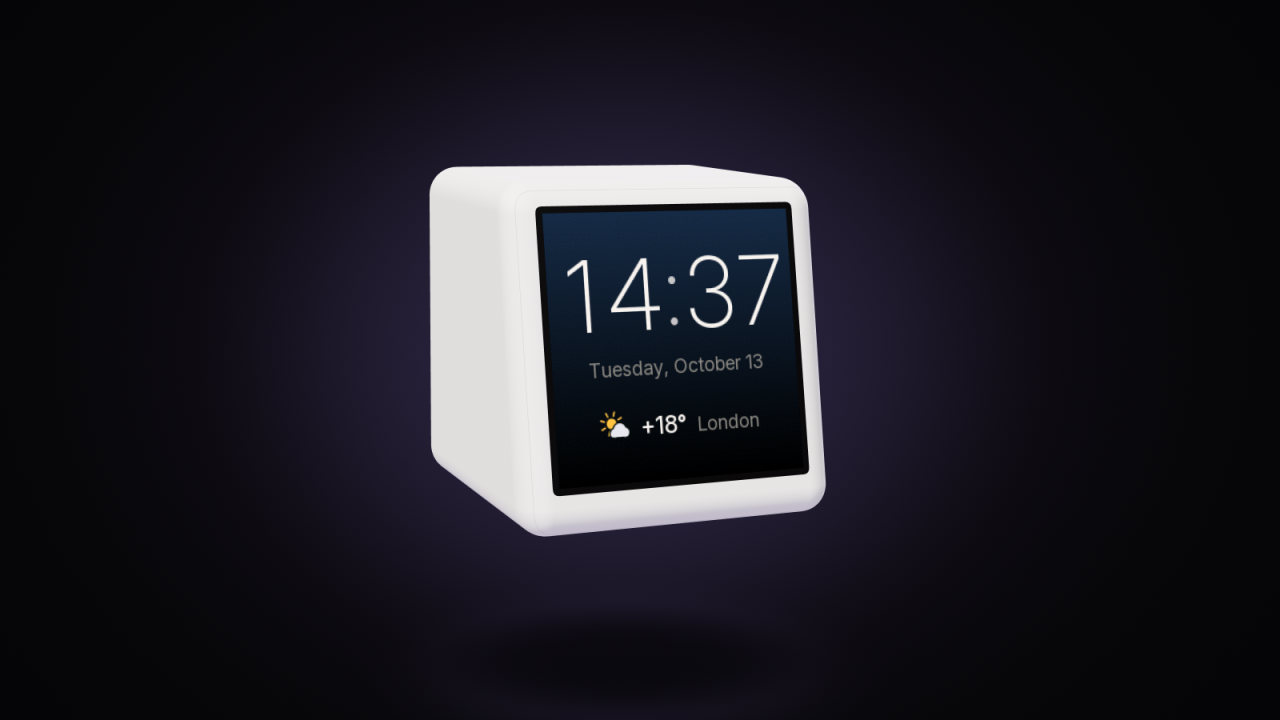
A GeekMagic SmallTV-Ultra gets the time from the internet (NTP) and the time zone from its settings. When the clock is wrong, it’s almost always the time zone: on the stock firmware it follows your weather city unless you set a fixed UTC offset, and a fixed offset doesn’t change for daylight saving. A clock stuck at 00:00 or in 1970 is a different problem — the screen never got the time at all.
Written for GeekMagic’s stock firmware V9.0.50 and ToyTool Firmware 1.16.0.
Why stock clocks go wrong
| What you see | Cause | Reported in |
|---|---|---|
| Off by whole hours | Wrong or ambiguous weather city — the time zone comes from it | GeekMagic’s manual |
| One hour ahead after the clocks changed | Older firmware had a separate DST switch that could add an hour on top | #230 |
| One hour off twice a year | A manual UTC offset, which never changes by itself | — |
| 00:00 and 1/1/1970 | The time never synced | #225, #237 |
| A few minutes off, now and then | Unresolved on 9.0.51 and 9.1.51; GeekMagic suspected DST being applied twice and other time sources overriding NTP | #266 |
The DST switch is gone in V9.0.50: in issue #230, GeekMagic wrote that DST no longer needs setting, and an owner confirmed the clock was right after updating. For the 1970 clock, several owners in #225 reported that V9.0.49 fixed the sync.
Fixes on the stock firmware
The stock Time page (http://<screen-ip>/time.html) has the settings that matter here.
- Get the city right first. On the Weather page, use
City,CCor an OpenWeatherMap city ID, as described in the weather guide. In automatic mode the offset comes with your city’s weather — and, as GeekMagic explains in #266, the weather service’s offset already includes daylight saving. - Choose the time zone mode. Under 1. Time Zone, Auto (from city location) is the default in V9.0.50. Manual lets you pick a UTC offset from −12:00 to +14:00 in 15-minute steps — handy if automatic mode gets it wrong, but you’ll have to change it yourself when daylight saving starts and ends.
- Set an NTP server if the time never syncs. Under 7. Ntp Time server, enter a public server such as
pool.ntp.orgortime.google.com. The page says the screen has several servers built in and uses yours first. - Update an old firmware. If your version still has a DST switch, or the clock sits at 1970, GeekMagic’s newer files are in their GitHub repository and install at
http://<screen-ip>/update. - Restart the screen (Settings → 6. Reboot) after changing these.
The same Time page also has the 12/24 Hour Format switch.
How ToyTool Firmware keeps time
- The time zone comes from the city you pick in your ToyTool account (screen Settings → City & time). The same city sets the weather. A new screen starts on Moscow time; if your browser is in another time zone, the account offers your city with one tap.
- The screen keeps the time zone rules itself. It stores the zone as a standard rule string (for London:
GMT0BST,M3.5.0/1,M10.5.0), so where daylight-saving rules are included it switches on the right night without asking the internet. - It syncs with three time servers:
pool.ntp.org,time.google.comandtime.cloudflare.com. - It never shows 1970. Until the first sync, the built-in clock shows
--:--and faces leave the time out. - After the first sync it doesn’t need the internet to keep counting, and its night mode and schedule run on the screen’s own clock. It doesn’t keep the time through a power cut, though: after one, it needs the internet once more to learn the time.

Which places switch for daylight saving
All of them. When you pick your city, the account reads that time zone's rules from your browser's time-zone database
and stores them on the screen as a standard rule string. For Paris that's <+01>-1<+02>,M3.5.0,M10.5.0/3: +02 from the
last Sunday of March, back to +01 on the last Sunday of October at 03:00. From then on the screen changes its clock by
itself every year, with no lookup over the internet.
A few cases need a second look:
- Accounts set before 14 October 2026. Back then the account knew the rules of only eight zones (London, Berlin, Warsaw, Belgrade, Kyiv, Riga, New York, Los Angeles); every other city got a fixed UTC offset. If your clock is an hour off after a change, pick your city again once — the full rule reaches the screen within seconds.
- Rules that aren't "the Nth Sunday of a month". Israel, for example, switches on the Friday before the last Sunday of March. The account stores this year's date as a weekday rule, which is right in most years and can be a week off in others. If the clock doesn't switch on the right day, pick your city again.
- Countries change their rules now and then. If yours does, pick your city again after the change.
Places without daylight saving (Moscow, Istanbul or Dubai, for example) get a fixed offset, which is exactly right.
Two time zones on one screen?
Not supported: each screen has one city and one time zone, and the time format is 24-hour only in firmware 1.16.0. If you need a second city’s time, a second screen set to that city is the simple way.
More on the first start in the setup guide; the firmware itself is on the ToyTool Firmware page.
Sources: the firmware’s source code, the stock V9.0.50 firmware file, GeekMagic’s manual and public GitHub issues.
Read next
 How to reset a SmallTV-Ultra (and fix boot loops)Factory reset, Wi‑Fi reset and boot-loop fixes for a GeekMagic SmallTV-Ultra on stock firmware, plus safe mode and reflashing on ToyTool Firmware.
 SmallTV-Ultra weather not updating? How to fix itWhy the GeekMagic SmallTV-Ultra shows old or wrong weather on stock firmware — city, API keys, versions — and how ToyTool Firmware gets it without a key.
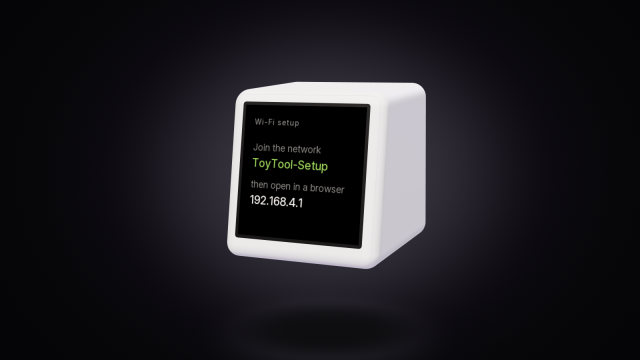 GeekMagic SmallTV-Ultra won't connect to Wi-FiWhy a SmallTV-Ultra won’t join Wi‑Fi, loops on “Connect WiFi” or shows “IP unset”: fixes for stock firmware, and what ToyTool Firmware does.