ToyTool Firmware
How to install custom firmware on SmallTV-Ultra
Put ToyTool Firmware on a GeekMagic SmallTV-Ultra from your browser with a small installer, what the screen shows, and what to do when it stops.
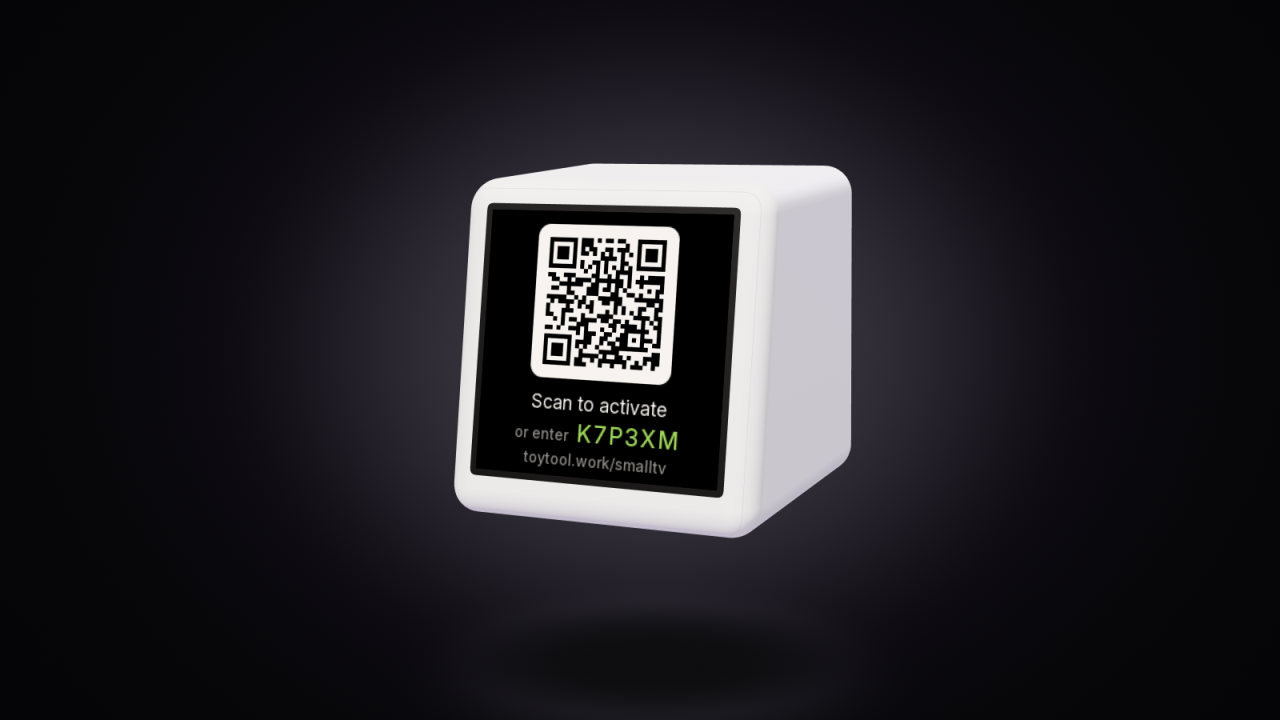
You don’t need to open a GeekMagic SmallTV-Ultra or plug it into a computer to change its firmware. The stock firmware has an update page at http://<screen-ip>/update that takes a firmware file over Wi‑Fi, from any browser. ToyTool Firmware goes on through that page in one upload: a small installer, which then downloads the full firmware by itself, checks it and restarts into it.
Written for ToyTool Firmware 1.18.0, its installer 1.0.0 and GeekMagic’s stock firmware V9.0.50.
Before you start
- Check that it’s an Ultra. ToyTool runs on the GeekMagic SmallTV-Ultra (ESP8266) only — not the SmallTV Pro or ESP32-based “smart weather clock” lookalikes. GeekMagic’s own update page warns about this in capitals. If you’re not sure, see which SmallTV you have.
- Note your stock version. It’s on the stock Settings page next to “Model” and “Ver”. The installer was made for V9.0.50.
- Have it on Wi‑Fi with internet. The installer downloads the firmware from toytool.work over the network the screen already uses. The phone or computer you upload from must be on the same network.
- Keep it on stable power. GeekMagic’s manual asks for 5 V and at least 1 A, and says USB-C-to-USB-C cables aren’t supported — use the cable that came with it.
- Get a licence. ToyTool is paid — Basic is $3.99 per screen, once. The installer is in your ToyTool account under Firmware, and the screen works once it’s linked to your licence (until then it only shows its activation code).
There is no USB data connection on this screen: its USB-C port only powers it, and the board has no USB-to-serial chip. Everything below happens over Wi‑Fi.
Why an installer and not the firmware file
The stock update page writes the new file into the free flash between the running firmware and the screen’s file storage, and only switches over once the whole file has arrived. On V9.0.50 that leaves room for about half a megabyte; a bigger file stops with Not Enough Space (that exact text is in the V9.0.50 firmware). ToyTool Firmware is bigger than that, and even packed it is close to the limit. The installer is small enough to leave plenty of room:
| File | Size | On stock V9.0.50 |
|---|---|---|
ToyTool installer toytool-installer.bin | 381 KB | fits |
ToyTool Firmware 1.18.0 .bin.gz | 500 KB | close to the limit |
ToyTool Firmware 1.18.0 .bin | 724 KB | refused: too big |
GeekMagic FW-Smalltv-Ultra-V9.0.50.bin | 493 KB | — |
What it does once it runs: it reads the Wi‑Fi network the stock firmware saved, downloads ToyTool Firmware from toytool.work, and checks it against the size and MD5 that your account wrote into the installer when you downloaded it. Only a complete file that matches replaces the installer. Other projects for this screen hit the same wall; smalltv-mod, for example, also installs through a small loader first.
Install it from your browser, step by step
Download the installer. In your account, open Firmware and click Download the installer. You get
toytool-installer.bin, about 381 KB. Each download carries the firmware version that’s current that day; an older download still installs the version it was made for, as long as we keep that version.
Your account’s Firmware page. For a first install from stock, take the installer. - Find the screen’s address. The stock firmware shows its IP address on the screen right after it connects to Wi‑Fi, every time it starts. Your router’s list of connected devices shows it too.
Open the update page. In a browser, go to
http://<screen-ip>/update— for examplehttp://192.168.1.50/update. The stock Settings page links to the same page from 7. Firmware update → UPLOAD.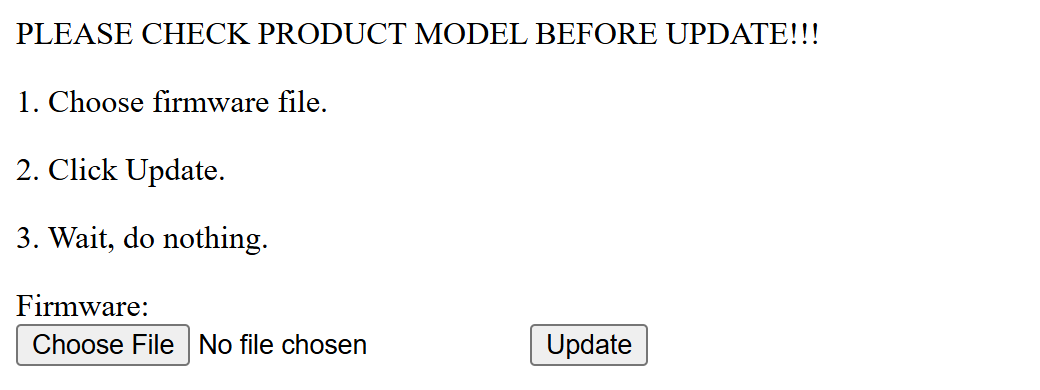
The stock V9.0.50 update page, rendered from the page inside the V9.0.50 firmware file. - Upload the installer. Click Choose File, pick
toytool-installer.bin, click Update — then, as the page itself says, wait and do nothing. When it’s done the page shows “Update Success! Rebooting...” and the screen restarts into the installer. Let the screen install ToyTool. It shows “Installing ToyTool” while it reads the saved Wi‑Fi, “Connecting to …” with your network’s name, then Installing ToyTool… with a ring that fills up as the firmware downloads. When the file has arrived and checks out, it shows Done, restarting. Keep it plugged in the whole time.
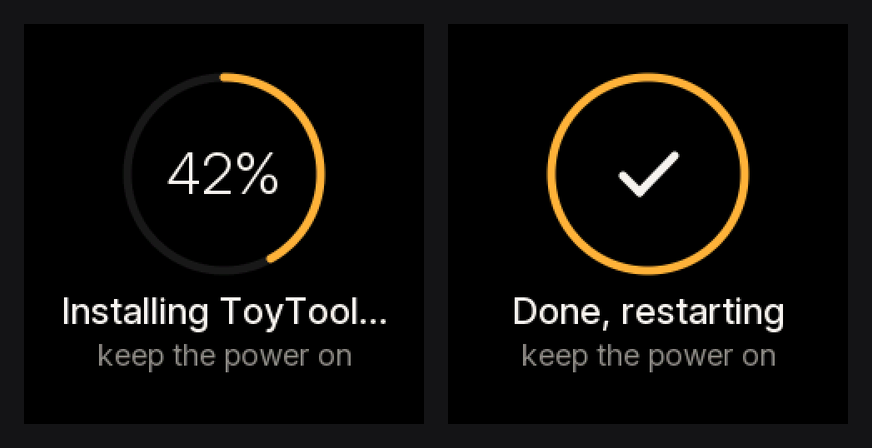
While it downloads, and once the firmware has checked out. Activate. After the restart, ToyTool joins the same Wi‑Fi and shows a QR code and a six-character code. Scan the QR code with your phone: your account opens with the code already filled in. Name the screen if you like and click Link screen. No phone camera? Open your account, click Add screen and type the code.
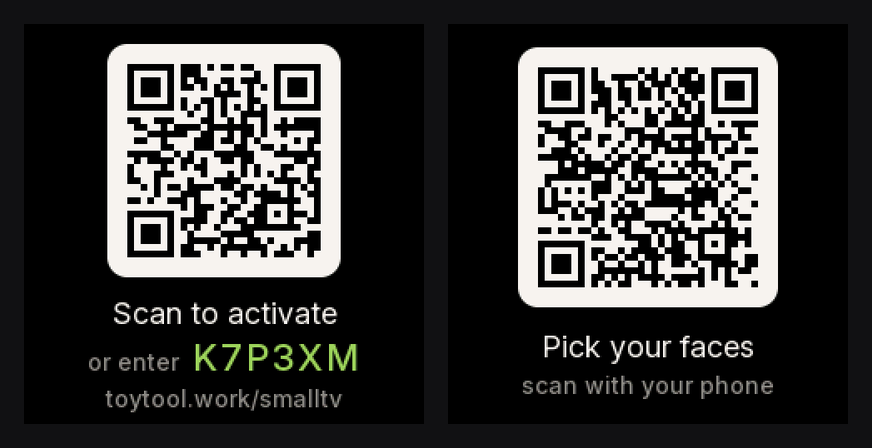
Left: the activation screen after the install. Right: once linked, a QR code to pick faces. 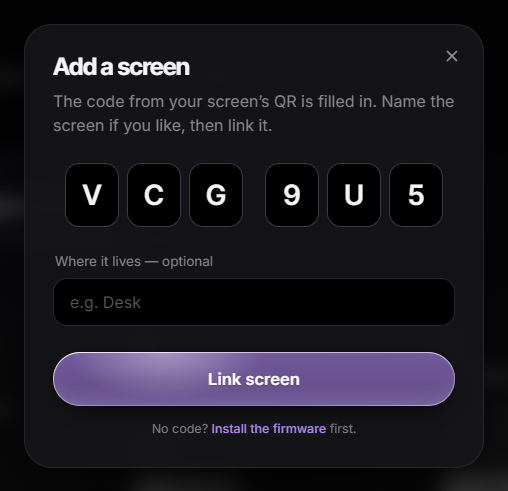
Scanning the QR code fills the code in for you. - Pick your faces. Your account offers a few faces to start with. Until you choose, the screen shows a second QR code that leads to the same place.


The installer speaks the language your account was in when you downloaded it, and ToyTool starts in that language too.
If something stops
The installer never leaves the screen without a way back: on any error it says what happened in a few words, and the screen’s address keeps two pages open — http://<screen-ip>/log (what it did, step by step) and http://<screen-ip>/update (to upload a file by hand). When you write to us, the log is the most useful thing to send.

- The stock page says “Not Enough Space”. You picked the firmware file (
.binor.bin.gz) instead of the installer. Choosetoytool-installer.bin, about 381 KB. If the installer itself is refused, your stock version leaves less room than V9.0.50 — write to us with the version from the Settings page. - The screen shows “Wi-Fi setup” and ToyTool-Setup. It found no saved network, or couldn’t join it; the bottom line says why (for example “wrong password”). Join the open network ToyTool-Setup from your phone, open
http://192.168.4.1, pick your Wi‑Fi and type its password. The Wi‑Fi guide goes through every reason. - “No internet”, “Server is busy”, “Download broke off” or “Download damaged”. It tries again by itself: after 10 seconds, then 30, then every minute, with the countdown on the screen. Nothing changes on the screen until a complete file has arrived and its MD5 matches, so you can leave it. If it keeps saying “No internet”, check that the router itself is online.
- It sits at the same percentage. If no data arrives for 20 seconds, the installer calls the download broken off and starts it again from 0%.
- The power went off during the install. While the ring is filling, that’s safe: the installer stays in place, starts again with the next power-on, and finds the same Wi‑Fi. The risky moment is the few seconds after Done, restarting, when the chip copies the new firmware into place — the same as any firmware update on this screen. Don’t unplug it then.
- “Installer out of date”. The firmware version this installer was made for is no longer on our server. Download a new installer from your account and upload it at the address shown on the screen (it ends in
/update). - “File arrived damaged”. The installer checks itself before anything else, and this copy is broken. Upload it again at the address shown on the screen.
- “Installer incomplete”. The file didn’t come from your account’s download, which is what writes the firmware version and its checksum into it. Download it from Firmware in your account and upload it at the address shown.
What carries over, and what doesn’t
| After the install | |
|---|---|
| Your Wi‑Fi network and password | Kept — read from the stock firmware’s storage or the chip’s own saved network |
| Stock settings (city, theme, brightness, night mode) | Not kept — set them again in your account |
| GIFs and photos uploaded to the stock firmware | Not kept — ToyTool uses that storage for its own files; upload GIFs again in your account |
| The stock web console | Replaced by the screen’s own page and your account |
Already on ToyTool
You don’t need the installer to update: from firmware 1.14 on, the screen’s card in your account shows Update when a new version is out, and the screen downloads it itself, checks it against the expected size and MD5, and restarts. Faces and settings stay.

The manual way still works too: download the .bin.gz (the regular .bin is fine as well once ToyTool is installed), open the screen’s page, choose the file under Firmware and click Flash. The installer also works from that page — it leaves the faces, settings and the link to your account as they are and puts the firmware back on — but it’s only needed when a screen can’t update any other way.
Going back to the stock firmware
- Download the stock firmware from GeekMagic’s GitHub repository (V9.0.50 is the newest folder there). Their README suggests checking the file’s MD5 if an update complains.
- Open the screen’s own page: in your account, open the screen’s Settings → Screen’s page on your home network, or type its address into a browser.
- In Firmware, choose the
.binfile and click Flash. The screen restarts into the stock firmware.
The stock settings, photos and GIFs won’t come back: they lived in the screen’s file storage, which ToyTool reuses. The stock web console also loads its scripts and styles from that storage rather than from the firmware file, so we can’t promise it comes back complete. If you plan to go back, ask us first.
Is it safe?
- Faces can’t run code. A watch face is a short description of shapes, text and data, not a program.
- Downloads are checked. The installer and the one-tap update both compare the firmware with the size and MD5 they expect before the screen switches to it; a cut or damaged download leaves the screen as it was.
- Safe mode catches a firmware that keeps crashing on start, so the screen stays reachable over Wi‑Fi. See reset and recovery.
- What we can’t fix remotely: with no USB data port, a screen that loses power while it copies new firmware into place can only be recovered by opening it and flashing it over serial — the method the ESPHome device page lists as the alternative to installing over the air.
Quick answers
Can I upload the firmware file from stock instead? The plain .bin is too big for stock V9.0.50. The .bin.gz of 1.18.0 is just under its limit, but later versions may not be; the installer stays well under it.
Do I need a computer? No. A phone browser works for every step, including choosing the file on the stock update page.
Does the installer need the internet? Yes: it downloads the firmware from toytool.work over the screen’s own Wi‑Fi.
Can I use one installer for several screens? Yes. Each screen still needs its own licence to activate.
Will it work on a SmallTV Pro? No. ToyTool is built for the Ultra’s ESP8266 and its screen wiring only.
Sources: the firmware’s and the installer’s source code, the stock V9.0.50 firmware file, GeekMagic’s manual and public GitHub issues.
Read next
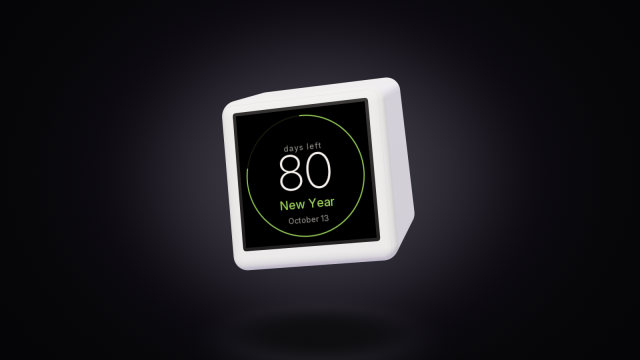 A countdown to any date on the SmallTV-UltraCount the days to a trip, a launch or retirement on a GeekMagic SmallTV-Ultra. The built-in countdown, more timers from a script, and the limits.
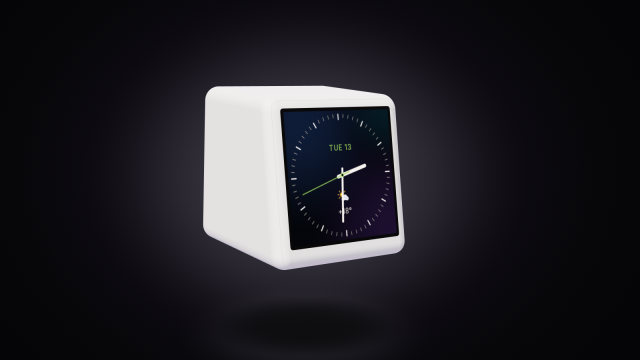 Build your own watch face for the SmallTV-UltraDesign a custom watch face for the GeekMagic SmallTV-Ultra in ToyTool Studio or as JSON: elements, live data, recolouring store faces, limits.